
Documentationv2.0Start Free
Developers
API Keys
API keys authenticate the Chrome Extension and the MCP server. Each key is tied to one account and inherits its plan's rate limits and write permissions. Keys start with psk_ and are shown once — copy immediately, store in a secret manager.
API keys are available on every plan
Free, Pro, and Team accounts can all generate API keys. Free keys are subject to the 50 req/day MCP cap and the 5-prompt / 2-agent / 2-skill entity limits. Upgrade in Settings → Billing to unlock 500/day and unlimited saves.
Create a key
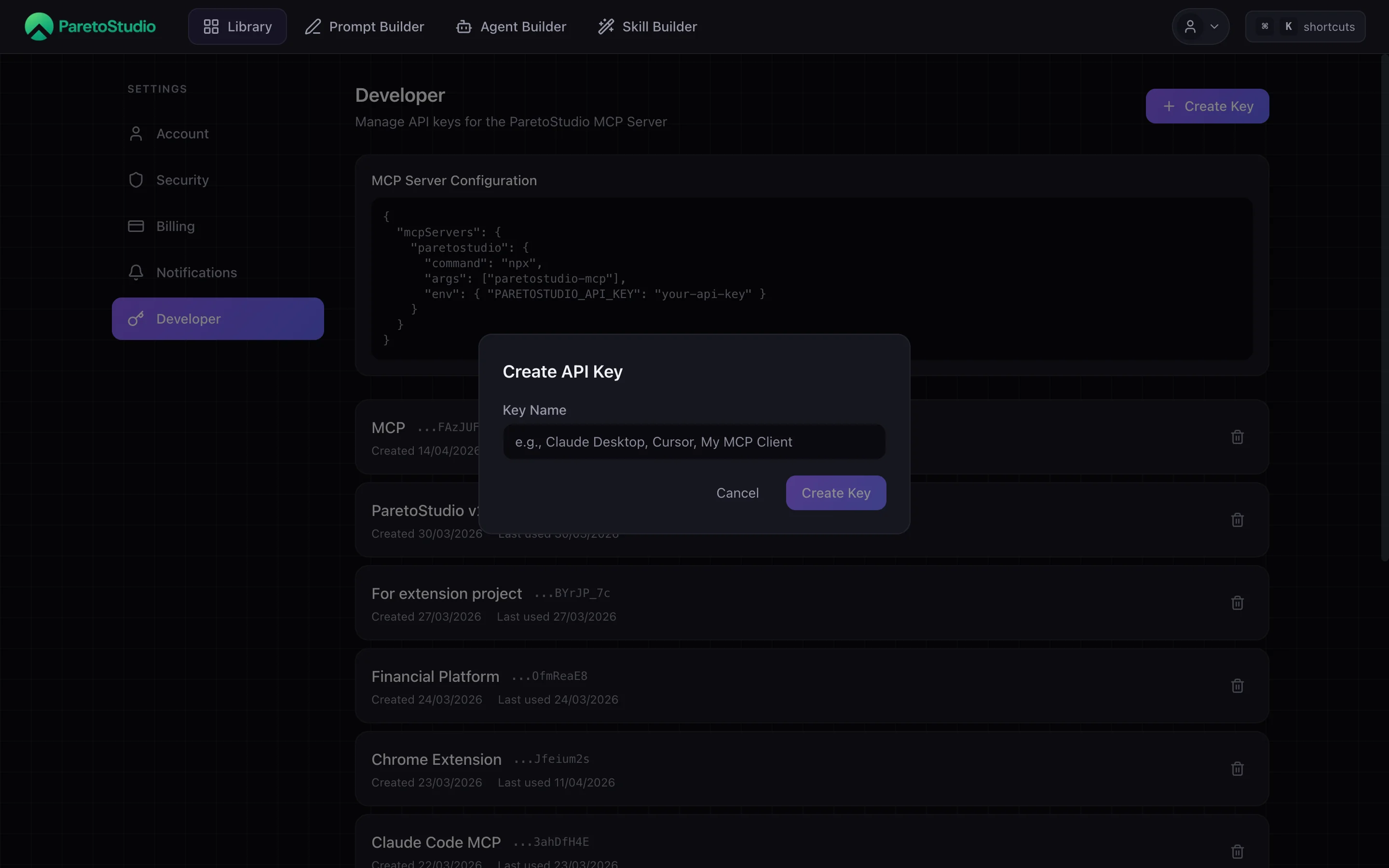
Open Settings → Developer
Sign in on paretostudio.io, click your avatar, pick Settings, then the Developer tab.
Create the key
Click "Create API key" and give it a descriptive name (e.g., "Claude Desktop — laptop", "Cursor — work"). Naming keys is how you know which to revoke later.
Copy it immediately
The full key is shown once. Copy it into your MCP config or secret manager before closing the dialog.
Lost the key?
ParetoStudio only stores a hash — we cannot show it again. Revoke the lost key and create a new one.
Use your key
Use the same key to configure the MCP server, run scripts against the REST API, or test a quick HTTP call.
Paste into your MCP client's config and restart the client.
.mcp.json / claude_desktop_config.jsonjson
{
  "mcpServers": {
    "paretostudio": {
      "command": "npx",
      "args": ["paretostudio-mcp@latest"],
      "env": {
        "PARETOSTUDIO_API_KEY": "psk_your_key_here"
      }
    }
  }
}
Manage keys
Treat keys like SSH keys. One per client, revoke independently, rotate without downtime.
Multiple keys
One per client — Claude Desktop, Cursor, Extension on the laptop, Extension on the desktop. Revoke any single one without impacting the others.
Revoke a key
In Settings → Developer, click the trash icon next to the key. Revocation is immediate and irreversible — the client receives 401 on its next request.
Rotate zero-downtime
Create the replacement first → update the client config → verify it works → revoke the old key last. No lapse in access.
Security
Keep your keys safe
- Never commit
psk_to version control — scan repos with gitleaks or similar. - Load keys from environment variables or a secret manager (1Password, Doppler, AWS SSM).
- Revoke the moment a key is suspected to leak. Rotations are cheap; breaches are not.
- Never share a key across teammates — each person creates their own so audit trails stay clean.
- Server-side calls only — never embed a key in client-side JavaScript or a mobile binary.
Destructive tools
Pro keys can delete agents and skills from the MCP server. Your AI client prompts for confirmation before calling these.
delete_agent | Permanently delete an agent from your library. | Pro |
delete_skill | Permanently delete a skill from your library. | Pro |
Deletions are permanent
There is no undo. The AI client must surface a confirmation before calling either tool. If you want a reversible flow, duplicate the item first, then delete the original.