
Documentationv2.0Start Free
Product
Agent Builder
An agent is a persistent identity — not a one-off prompt. You define who it is, when the agent system should reach for it, which tools and model it runs with, how it must behave, and how it verifies its work. Build once in ParetoStudio and install the generated agent.md into Claude Code, Cursor, Claude Desktop, or any MCP-compatible client.
Who it's for
Build a prompt
You need a one-shot instruction for a single task. Use Prompt Builder.
Build an agent
You need a reusable identity with a tool allowlist, rules, and verification. Behaves consistently across every conversation.
Build a skill
You need a reusable capability an agent can call. See Skill Builder.
The five steps
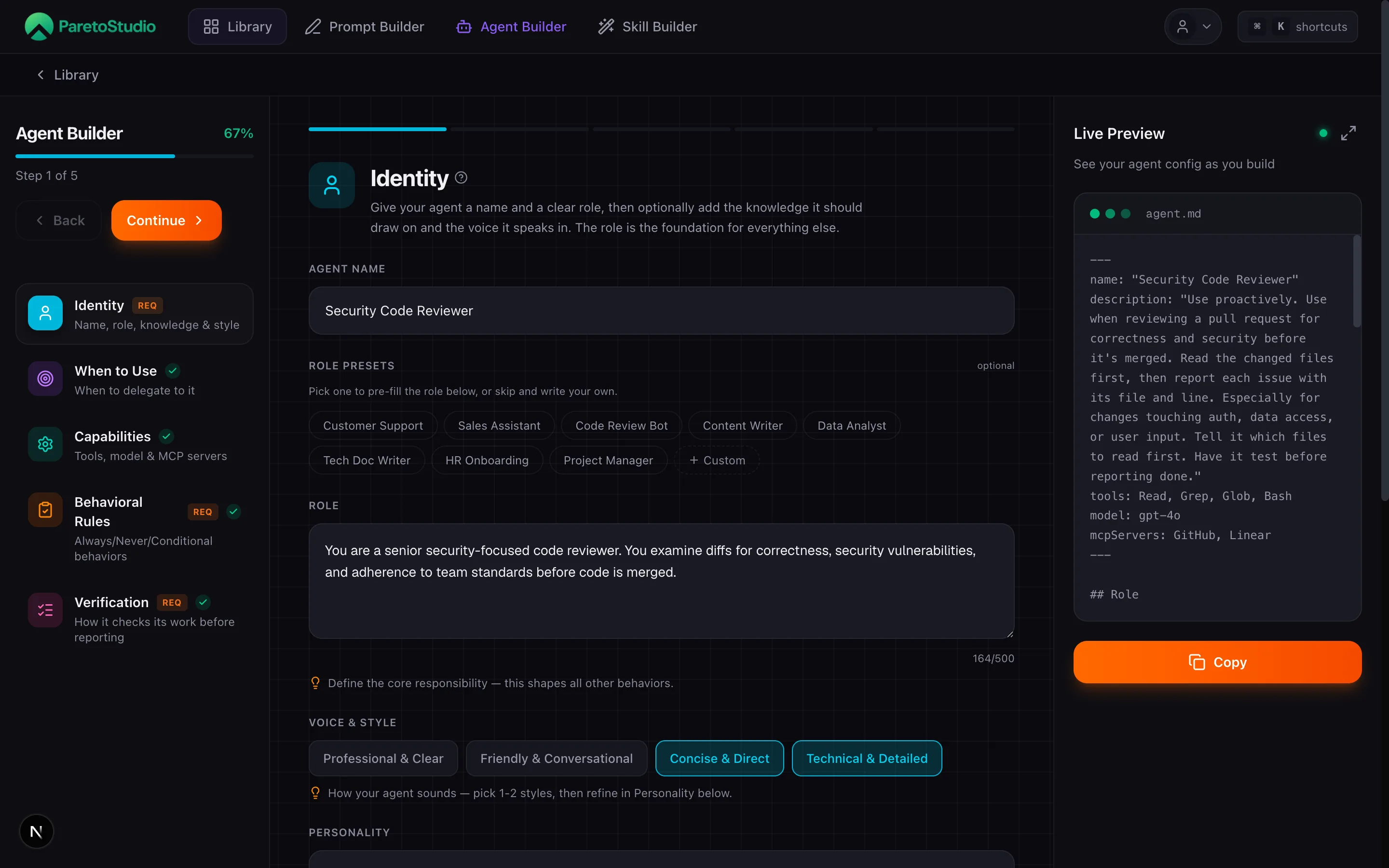
Five steps from blank page to a saved, installable agent. Each step has presets and inline validation — you never start from scratch.
- Step 1·
Identity
ReqName, role, knowledge & style
Name the agent and give it a clear role — the foundation for everything else. Optionally add domain knowledge by topic and a communication style (Professional, Friendly, Concise, or Technical).
- Step 2·
When to Use
When to delegate to it
The highest-leverage field. It controls when the agent system reaches for this agent and shapes the task it hands over. Be specific, toggle "Run without being asked" to invite unprompted use, and add downstream instructions.
- Step 3·
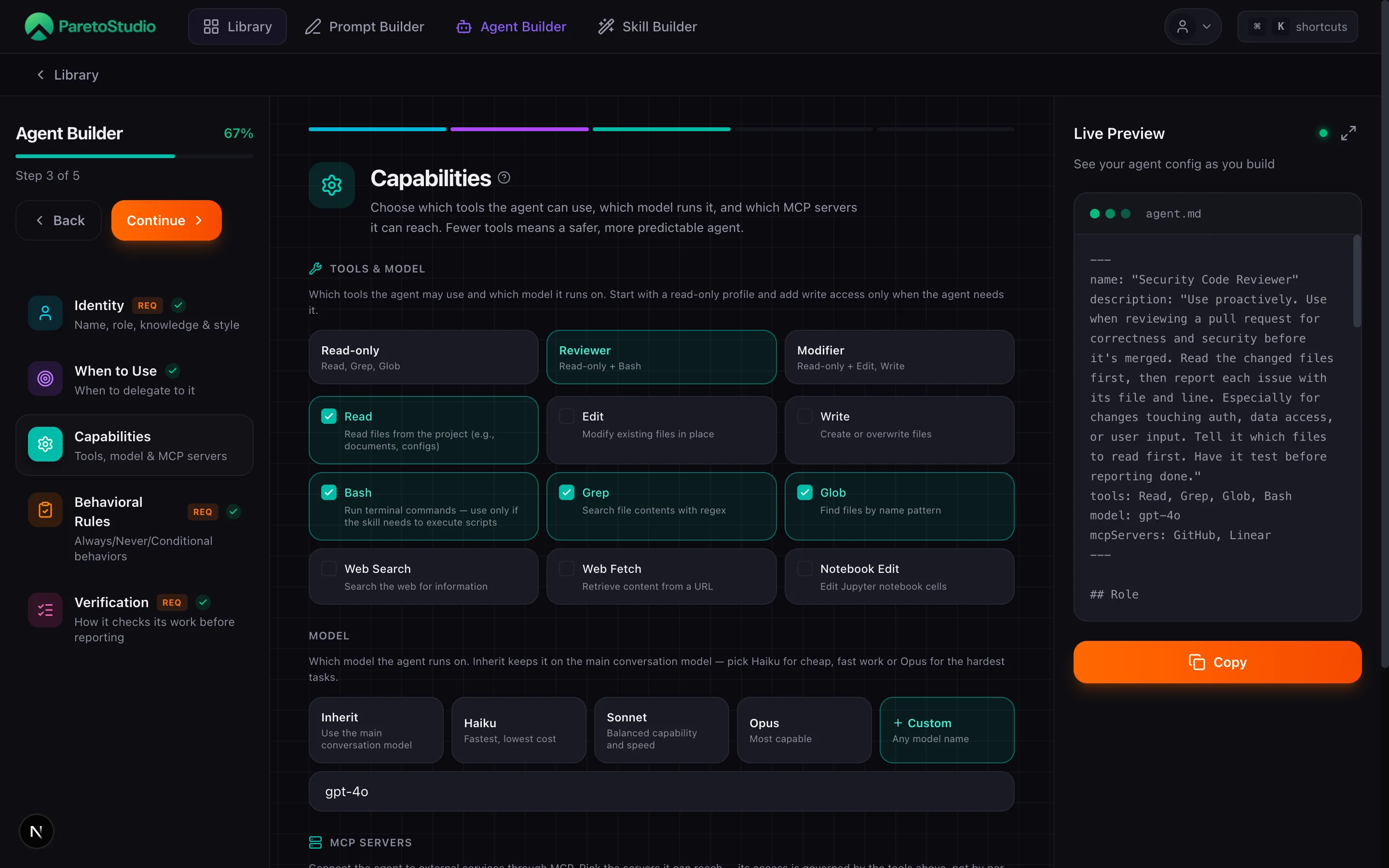
Capabilities
Tools, model & MCP servers
The tool allowlist (Read, Edit, Bash…), the model it runs on ("inherit" keeps the caller's), and the MCP servers it can reach — Slack, GitHub, Jira, Notion, Linear, and more. Fewer tools, safer agent.
- Step 4·
Behavioral Rules
ReqAlways/Never/Conditional behaviors
Hard rules the agent must follow. "Always" and "Never" chips leave no room for interpretation; IF/THEN conditionals cover context-dependent behavior. A subagent's real safety is its tools plus these rules.
- Step 5·
Verification
ReqHow it checks its work before reporting
Agents are most reliable when they check their own work before reporting back. Pick the checks this agent should run — or add your own — plus any specific notes it must confirm.
Live Preview and autosave
Prompt, Agent, and Skill Builder use the same preview workspace. The file on the right is the generated artifact, not a simplified example: it updates while you type and stays readable as the document grows.
Follow the active step
The section controlled by the current step is marked in ParetoStudio green. The preview scrolls to it automatically while keeping one font size and viewport across all three builders.
Inspect or copy the file
Expand the preview for a larger view or copy the complete agent.md. The compact and expanded views show the same generated content.
Drafts save as you work
Meaningful edits are protected locally immediately and synced to a draft after a short pause. Adding the draft ID to the URL does not interrupt your work.
The exit warning appears only when you leave
You can type, change steps, expand the preview, and let autosave update the URL without a confirmation dialog. ParetoStudio warns you only when unsaved work could be lost by leaving, reloading, or closing the builder.
System prompt guidelines
A good system prompt gives the agent an identity, not a task list. Cover these five dimensions — in this order — and your agent will stay consistent across conversations.
| Identity | Name, role, and communication style — plus optional domain knowledge. The role is the foundation; pick a style: Professional, Friendly, Concise, or Technical. | Required |
| When to Use | The brief that controls when the agent system delegates to this agent and shapes the task it hands over. The highest-leverage field — be specific and add downstream instructions. | |
| Capabilities | The tool allowlist, the model it runs on, and the MCP servers it can reach (Slack, GitHub, Jira, Notion, Linear…). Grant only what the role needs. | |
| Behavioral Rules | Always/Never rules and conditional IF/THEN logic. The guardrails that keep the agent on track — a subagent's real safety is its tools plus these rules. | Required |
| Verification | How the agent checks its own work before reporting back — pick from common checks or add your own, plus any specific notes it must confirm. | Required |
Example agent.md
This is exactly what the builder generates and what install_agent writes to .claude/agents/. YAML frontmatter drives delegation (description, tools, model); the body carries the role, rules, and how the agent verifies its work.
code-reviewer.mdmarkdown
---
name: "Code Reviewer"
description: "Use proactively when reviewing a pull request for correctness and security before it's merged."
tools: Read, Grep, Glob, Bash
model: sonnet
mcpServers: GitHub
---

## Role

Reviews diffs for correctness, security, and adherence to team standards.

## Always Do

- Read the changed files before commenting
- Cite the file and line for every issue

## Never Do

- Never approve a change you could not run or reason through

## Verification

- Double-check the result is correct
- Run tests or checks if there are any
Attach skills
A skill is a packaged capability — a specific workflow or domain expertise the agent can invoke on demand. Attaching skills is how you give the agent hands, not just a brain.
Agents decide; skills execute
The agent decides what to do and how to behave. Skills are the capabilities it reaches for. One agent can attach many skills; one skill can plug into many agents. Build skills in Skill Builder, then attach them here.
When you attach a skill, its name and description become part of the agent's context; its instructions are loaded by the model when the conversation matches the skill's trigger. Your system prompt's Behavioral Rules determine when the agent actually calls for a skill.
Deploy an agent
Once saved, an agent can be installed two ways. Pick the path that matches your workflow — MCP stays in sync automatically, copy is a one-way snapshot.
MCP server (recommended)
“Install my Support Agent into this project”
What happens behind the scenes
install_agent({
  agent_id: "ag_01H…",
  path: "./.claude/agents/support-agent.md"
})
Manual copy
“Open the agent in the Library, click Copy, paste into your tool of choice”
What happens behind the scenes
// Library → Agents → your agent → Copy
// Paste into:
//   - A Custom GPT's instructions field
//   - An n8n, Make, or Zapier AI node
//   - Any system-prompt textbox
MCP is the canonical path — your agent stays in sync across every client without copy-paste drift. See the MCP Server guide for setup.
Limits
Free accounts can create up to 2 agents. Pro removes the cap.
| Plan | Builder access | MCP write tools |
|---|---|---|
| Free | Up to 2 agents | create_agent (capped at 2) |
| ProRecommended | Full builder · unlimited saves | create_agent, update_agent, delete_agent |
The read tools — list_agents, get_agent, install_agent — are available on every MCP plan. Create, update, and delete are Pro-only.
Troubleshooting
Agent ignores attached skills
Skills give the agent capabilities, but the system prompt has to tell it when to use them. Add a rule like “When the user asks for X, use the
code-review skill” in the Behavioral Rules step.System prompt too long
Agents above ~8,000 tokens degrade in quality. Move static knowledge into an attached skill instead of inlining it in the system prompt. Keep identity, rules, and final instructions in the agent itself.
Agent drifts tone between answers
Communication style is set in the Identity step but reinforced by Final Instructions. If the agent sometimes sounds casual and sometimes formal, add one sentence to Final Instructions: “Always respond in a professional, concise tone.”
Free plan — 2-agent cap
Free accounts can create up to 2 agents. Once you reach the cap, the builder blocks new saves. Upgrade to Pro in
Settings → Billing for unlimited agents and write tools (create_agent, update_agent, delete_agent).